- Intro
- Comment Credit
- Where to Find Files
- How to Format Albums
- Installing Onion
- Installing GME
- Starting GME
- Transferring Albums
- Using GME
- GME Controls
- Conclusion
Intro
This will be a short guide on installing and using the Game Music Emulator. It’s available as a RetroArch core so you can use it on most systems running RetroArch but I’ll be using the Miyoo Mini Plus and Onion OS for this guide.
Comment Credit
The Game Music Emulator was mentioned to me by user Ilker Yoldas in a comment.
Where to Find Files
So where you can find .vgm files? If you google “vgm rips”, you should find a couple of sites that host music rips from games. I’m no lawyer but I do believe that technically it can be illegal to download these files much like ROMs so keep that in mind.
Also keep in mind that most systems will not work properly when using the GME core on the Miyoo Mini. I don’t know if this is a limitation of the hardware or the software. As per Ilker Yoldas, the systems listed below formatted as .vgz files seem to work the best:
- Mega Drive/Genesis
- Mega CD
- SG 1000
- Sega Pico
- Tandy 1000
- IBM PCjr
- some of Sega System 1, 18, C, C2
Thanks again for the help Ilker!
How to Format Albums
The easiest way to organize them into albums is to create a zip file containing all the songs. This is because if you just have individual .vgm files in a folder, you can only open up one song at a time and this will be very inconvenient when it comes to loading new songs. I also tried using m3u playlists but they didn’t seem to work at all.
I would recommend using a program like 7-Zip: https://www.7-zip.org/.
You can simply organize albums into folders. Right click on the folder, go down to 7-Zip, and select “Add to archive…”.
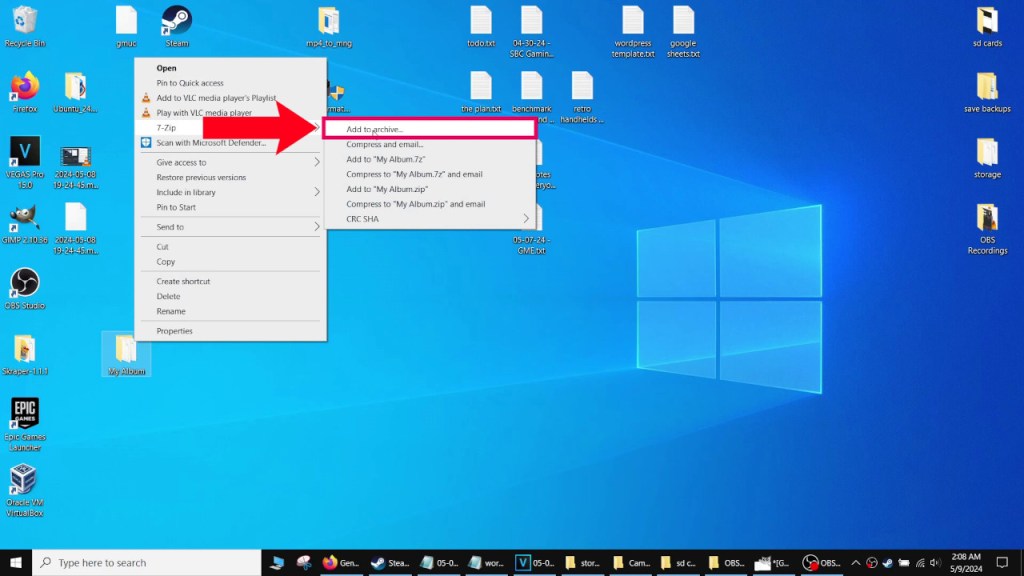
In the 7-Zip interface make sure the archive format is selected to “zip”. The other options can be left on default settings. Press “OK” to start zipping your files.

Do this for each album you want to create. Most sites will already have each game as a zipped album and you can just use those files as is. I’m mentioning this step in case you want to remove a bunch of short sound effects and only have songs in your album or make a custom album.
Once you have your zipped albums ready, we’ll move on to installing GME on your Miyoo Mini/Plus.
Installing Onion
Enabling GME is very easy if we are using Onion OS. You don’t need to use Onion since it’s a RetroArch core but I find dealing with Onion OS to be the most convenient.
Back up anything you want to keep on your microSD card since we will be formatting and formatting erases everything. I’d recommend guiformat (http://ridgecrop.co.uk/guiformat.htm) because it’s very simple.
If you get an error while trying to use guiformat, it won’t format the microSD card when it’s in use so make sure to exit out of any windows accessing your card.
You can also use:
rufus: https://rufus.ie/
Onion Desktop Tools (created by Onion OS dev Schmurtzm): https://github.com/schmurtzm/Onion-Desktop-Tools
Download Onion OS from their github (https://onionui.github.io/), extract the contents using a program like 7-Zip, and then copy all the files inside the folder over to the root of the microSD card.
Safely eject the micro SD card from your PC and then insert it into your Miyoo Mini/Plus and then turn it on and the installation should finish there in a few minutes. If something goes wrong, try reformating and reinstalling Onion, updating your firmware, or using another microSD card.
Refer to the Onion Upgrade/Installation section in my Nintendo DS guide if you need more help installing Onion OS: https://duckyobrien.com/2024/02/15/playing-nintendo-ds-games-on-the-miyoo-mini-plus/
Installing GME
Once we boot up Onion OS, navigate to the Apps folder, and then Package Manager. Press R once to go to the Apps tab and make sure “Expert (Shortcut)” and “RetroArch (Shortcut)” are enabled. We can use the expert shortcut to access GME or load it manually from RetroArch.
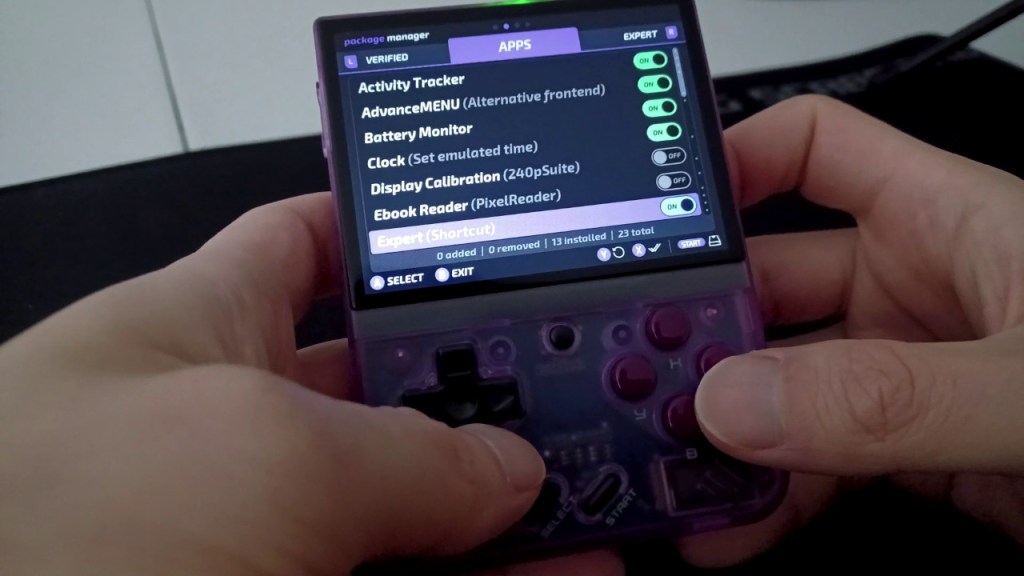
Press R one more time to go to the Expert tab. Scroll down to “Game Music Emu (GME)” and make sure it is enabled. Press Start twice to install and exit.

Starting GME
Now we can go to the Expert Shortcut in the apps folder and start GME there. We can also go into RetroArch, load the “Game Music Emu” core, and then load our zipped albums as the content. You can use whatever method is more convenient for you.
Now we’re done with the installation process and we can transfer our albums over. Turn your handheld off and reinsert your microSD card into your PC.
Transferring Albums
Onion OS uses SD:/Roms/GME as the default path for the album files. You can select all your albums, and drag them over to the SD:/Roms/GME folder. If you want some keyboard shortcuts, Ctrl+A will highlight everything in the active window, Ctrl+C will copy those files, and Ctrl+V will paste them into the active window.
Safely eject your microSD card and insert it back into your Miyoo Mini Plus.
Using GME
Once we’re back into Onion, navigate to Apps -> Expert Shortcut. Before we do anything else, press Select to bring up the option to Refresh all roms. Press A on this because otherwise we won’t be able to see our newly added albums. Each time you copy over new albums, you will probably have to refresh the ROMs list if using the Expert Shortcut.
Now start GME. The song list may appear blank sometimes but if you just press down on the d-pad, the song list will start to show.
Pick an album and viola, you are playing video game music by emulating the sound chips for each system.
Now if the sound files are not compatible, GME will either just exit straight away, or play the first 5 seconds of each song in silence, and then skip to the next track.
GME Controls
GME only has three simple controls.
- Start = Pause
- L1 = Previous Track
- R1 = Next Track
Conclusion
GME is pretty darn neat but for people who just want to listen to music easily, I’d recommend using the GMU app. The GMU Music Player app is also available on Onion OS. It’s just much easier to download and organize the songs into albums using GMU and it supports most commonly used audio file types.
I have a guide on using GMU if you would like more information: https://duckyobrien.com/2024/03/13/using-the-miyoo-mini-plus-as-a-mp3-player-onion-os/
Ok that’s going to be it. Hope you guys found this helpful. If you have any questions please feel free to leave a comment down below. Thanks again to Ilker Yoldas for the recommendation and help.
As always, hope you guys are staying safe and sane out there, and catch you guys next time.

 Ducky Obrien