
Intro
Collections on the Trimui Smart Pro are a robust way to create a curated list of games, making it much easier to decide what to play. I personally would recommend keeping a small ROM set, no greater than 10, to keep the focus on beating games. However, if you like hoarding, then collections will help you manage your ROM set.
Creating Collections
Installing CollaGen
We’ll be using the CollaGen app developed by rkr87 to create collections. You can manually create them but it’s tedious and time consuming so I prefer to use the app.
Thanks to a recent update, the CollaGen app will work on stock OS as well. You can find the app here: https://github.com/rkr87/CollaGen/releases.
Download the latest version and extract the contents. Open the Collagen folder. Inside will be another folder named Collagen. We want to copy this folder to our microSD card. I’ll be using a Windows PC and a microSD to USB adapter but most of these steps are doable on a phone and Mac as well.
Copy the CollaGen folder to SD:\Apps.
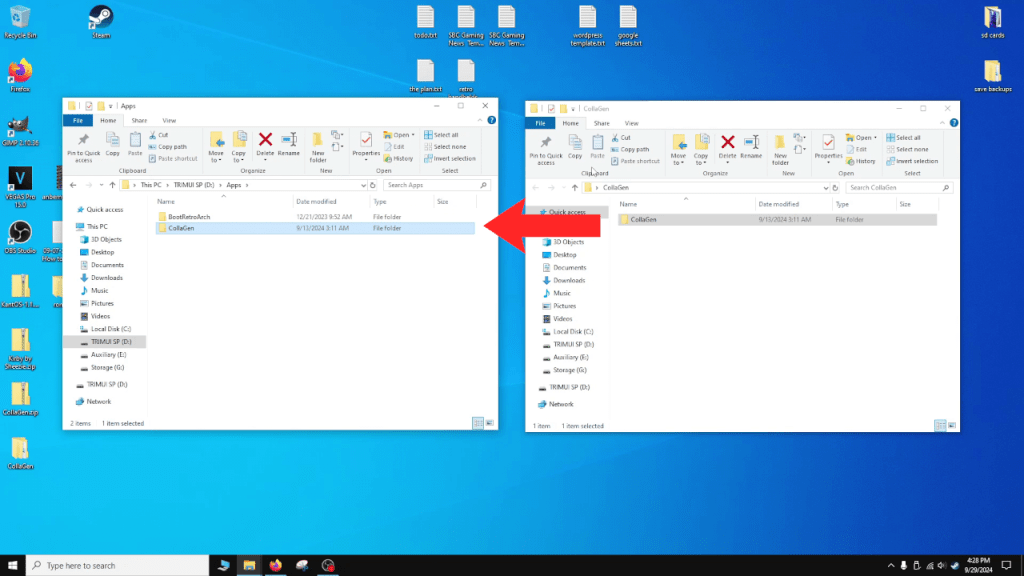
Safely eject the microSD card and insert it back into your Trimui Smart Pro.
Starting CollaGen
Once on the handheld, press R to navigate to the App tab on your Trimui Smart Pro. Start the CollaGen app.
Creating Collections
Once in the app, enter “1” into the terminal and press the start button. This will select the option to create a collection.
Enter a name for the collection and press start.

Now we’ll be entering the main search terms to include the desired ROMs into our collection. For example, if we want to create a Zelda based collection, we can type in “zelda” and press start. CollaGen will then look for every ROM file with the word “zelda” in it and include it into the collection. You can add multiple words to look for as well as add words to exclude from the collection later on.
The app will look for any ROM file including any of the search terms. For example if you typed in “shinobi” and “zelda” it would look for any ROM file containing the word “zelda” or “shinobi” or both.
Once you enter your initial search terms and press start, CollaGen will take some time to create the collection. After it’s finished, you can then press the menu button to exit the app.
Turn the console off again and insert the microSD card back into your PC.
Editing Collections
Stock OS Fix (Ignore if you are using CrossMix)
If you want collections to work on stock, you’ll need to edit the launch.sh file inside your collection folder.
Navigate to SD:\Best\[YourCollectionName].
Open launch.sh in notepad.
Delete this line: Launcher=$(jq -r '.launch' "/mnt/SDCARD/Emus/$RomDir/config.json").
Edit this line: LaunchPath="/mnt/SDCARD/Emus/$RomDir/$Launcher".
Change the $Launcher to launch.sh.
It should look like this: LaunchPath="/mnt/SDCARD/Emus/$RomDir/launch.sh".
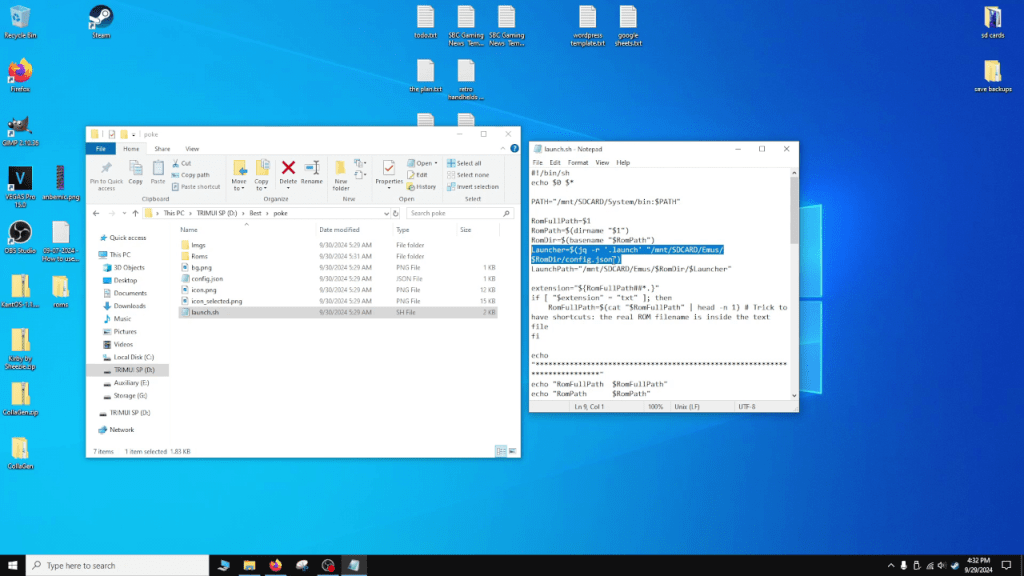

Save the changes and now your collection should launch games normally on stock.
Adding Icon/Background
I would recommend using a simple 500×500 png file as your icon.
I would also recommend adding a border around your icon image to indicate when your collection is selected.
For a background image, any 1280×720 png file will work.
I would recommend naming the images icon-[your collection name].png, icon-selected-[your collection name].png, and background-[your collection name].png respectively.
Open config.json in notepad.
Change the “label” field if you want to change the name of the collection, change “icon”, “iconsel”, and “background” if you added your own custom images.
For example:
"label": "pokemon",
"icon": "icon-pokemon.png",
"iconsel": "icon-selected-pokemon.png",
"background": "bg-pokemon.png",
Adding/Removing Games Manually
If you want to add a game manually, you’ll need to create the proper system folder if it doesn’t exist in the Roms folder inside your collection. For example, if you want to add a Game Boy Advance game, you’ll need a folder named “GBA” in the Roms folder.
If you don’t know what to name the system folder, look inside the Roms directory on your microSD card as a reference.
Inside that system folder, create an empty text file and name it after the game. So for example, Boktai.txt.
Open that text file and write in the full address of where that ROM file is on your microSD card. For example, /mnt/SDCARD/Roms/GBA/Boktai - The Sun Is in Your Hand (USA).zip.
You can also just copy the ROM file into the correct folder in the collection directory but this wastes space in my opinion.
To remove a game, simply delete the text file.
Make sure to refresh roms on the handheld if you added or removed any games by pressing the menu button once in the handheld’s main menu and selecting the refresh roms option.
Adding Boxart
To add boxart, place them into the Imgs folder in your collection directory. The image name must match the text file name exactly for it to display.
Troubleshooting
If something isn’t working, make sure there are no typos in the config.json and launch.sh files.
If your handheld was purchased before April 2024, you may need to update the firmware and stock OS files. A link to a guide on how to do that will be provided soon.
End
If you need any help please feel free to leave a comment! I’m busy with work at the moment but I do still read every comment and will do my best to respond as soon as possible. Thanks for dropping by and as always hope you guys are staying safe and sane out there.

 Ducky Obrien
Quick Question, I just received my Smart Pro and it has a file in the Rom section for GBA and I downloaded 3 games and placed them into that file. I booted up the system and did a rom refresh and the GBA system will still not show on the games list. The firmware appears to be up to date according to their website. Any idea on how I can get it to show up?
LikeLiked by 1 person
Hi Dustin, Thanks for leaving a comment! This is going to sound dumb but have you tried pressing down on the D-pad or whatever direction is necessary to go down the list of games? Sometimes the game names are invisible and show up after you reach the end of the list. This happens on other handhelds as well for some reason.
Anyways let me know if that works! If not, I’ll have to double check my handheld for the exact file name and location but you can just delete the gamelist.xml file and it should create a new up to date one next time you reboot.
LikeLike
So I tried scrolling to the left with dpad as well
LikeLike
What format are your roms btw. The default file extensions supported are .gba .agb .gbz and .zip.
Anyways assuming your games are in the supported format, you can try accessing your microSD card on a PC and delete the GBA_cache7.db file in the SD:\Roms\GBA directory.
Edit: And then insert the microSD card back and reboot the system.
Let me know if that works.
LikeLike
Don’t know why wordpress deleted my own comment lol. It may show up later so ignore it if it does.
I had to delete your latest response because it contained a link to a website with roms. This is illegal and can cause my site to be taken down so I had to remove it, nothing personal.
Zip files are supported so I don’t know why they aren’t showing up for you.
Also how are you transferring the games to the handheld? Are you using a microSD to USB adapter and a PC or are you plugging the Trimui Smart Pro directly into a PC? Plugging the device directly can cause data corruption for file transfers but the games should still show up.
Anyways, you can try deleting the file I mentioned before and see if that will force a refresh of the games list: SD:\Roms\GBA\GBA_cache7.db
LikeLike
Sorry didn’t mean to post any kind of link th
LikeLike
No problem!
LikeLike