- Intro
- Firmware Check
- Copying Updates
- Flashing the Firmware
- PPSSPP
- PPSSPP Tweaks for Even Better Performance
- GoodBye Friends!
- Changelog
- Credits
Intro
This is a guide on how to get better PSP performance on the Trimui Smart pro. The stock OS is pretty solid but PSP performance is very lacking. Most games will only run smoothly at 1x native resolution on stock and even then it may stutter and have some lag.
If we copy the standalone PPSSPP emulator from the CrossMix custom OS, we see a huge leap in performance. We’ll be able to play most games at 2x native resolution with very little frames dropping.
Firmware Check
Before we begin, we’ll need to check if the Trimui Smart Pro firmware has been updated to 1.0.4. This step isn’t necessary and you can skip it but updating to the latest firmware may give us performance increases.
You can do this by going to Setting -> System -> Device Info -> Version.
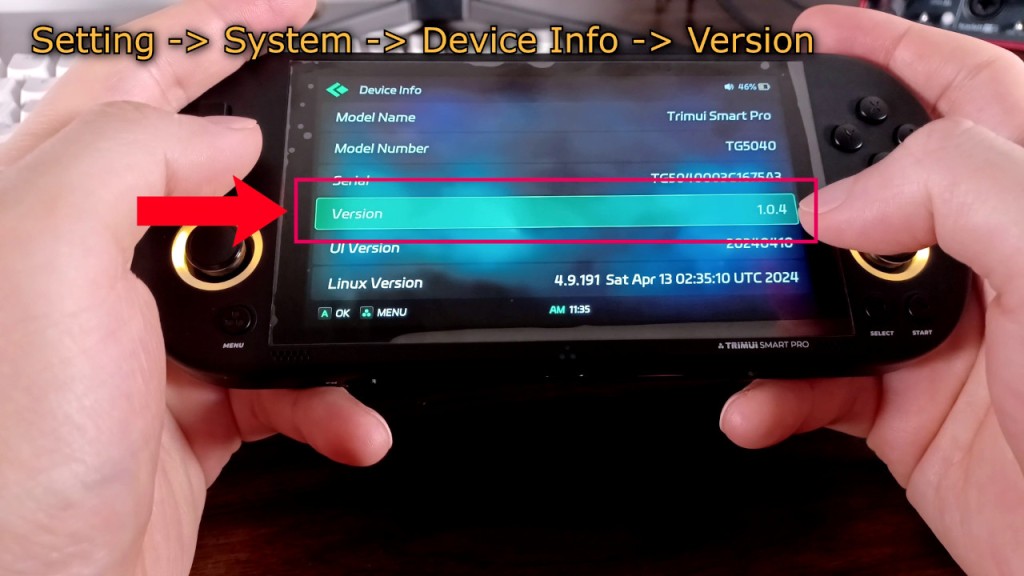
This field should have 1.0.4. If it does for you, you can skip to the step Updating PPSSPP. If you have a version lower than 1.0.4, we’ll update the firmware first and then install the updated PPSSPP emulator.
Firmware Update Prep
Updating the Trimui Smart Pro has two steps.
Flashing the new firmware for the handheld, and then copying the updated files to the microSD card.
If you’re using a new microSD card, we’ll need to format it to FAT32.
If you’re using an existing microSD card, we just need to copy files over. Do not format if you are updating an existing microSD card as formatting will erase everything on the microSD card and you will lose all your roms and saves. Once again, if you are updating an existing card, do not format.
Formatting
For formatting I like using guiformat as it’s the simplest app to use. You can download guiformat at http://ridgecrop.co.uk/guiformat.htm.
Insert the microSD card into a computer. I’m using a microSD to USB adapter that came with my Samsung card.
After inserting the card, start up guiformat. Make sure no window or app is accessing the microSD card as guiformat won’t let you format if the card is in use.
If you’re using a phone, Android can format microSD cards up to 32GB to FAT32 but for higher capacity cards most solutions will require rooting your phone.
Once you start guiformat, give Windows permission to run the app and then the guiformat window will appear.
For the “Drive” section, make sure your microSD card is selected. I have a 128GB SanDisk card and that’s reflected here.
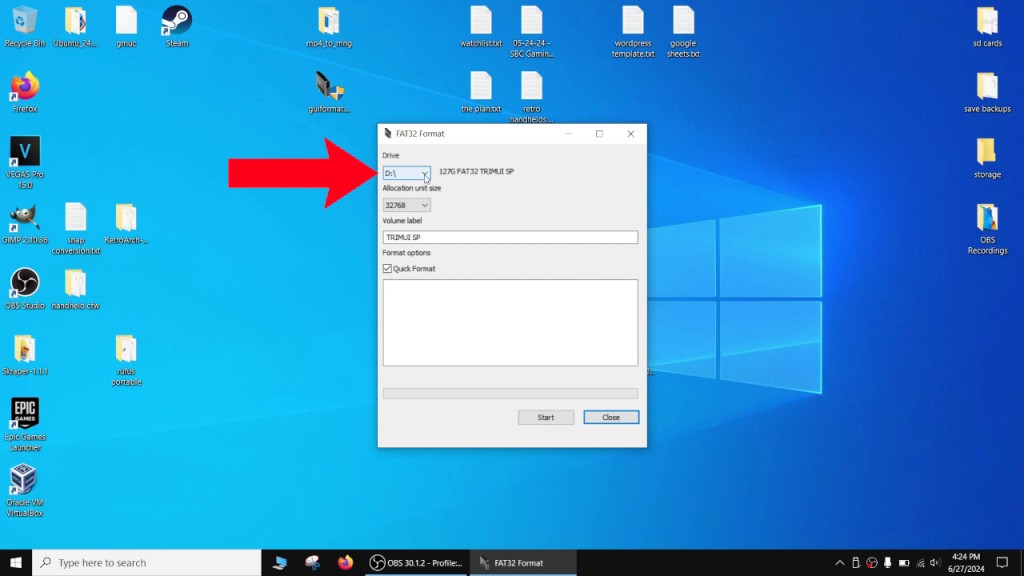
You can leave “Allocation unit size” at the default setting.
For “Volume label” I like to name it after the handheld so I can keep track of which system the microSD card is for. I’ll name it TRIMUI SP. You can name it whatever you want.
You can leave the “Quick Format” box checked.
Press the start button and let it finish.
Copying Updates
Copying Firmware Update
The first step is to copy over the latest firmware image for the TrimUI Smart Pro. You can find the latest image on the trimui firmware github: https://github.com/trimui/firmware_smartpro/releases.
You’ll want the file starting with trimui_tg5040. The SD Recovery file is for saving a bricked handheld and we don’t need to use it.
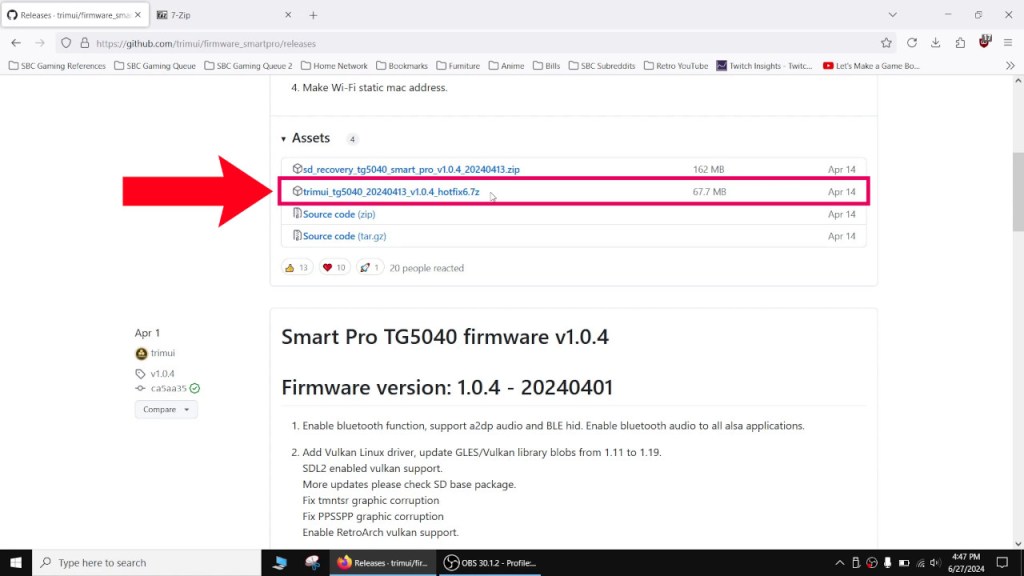
The latest file as of this recording was trimui_tg5040_20240413_v1.0.4_hotfix6.7z.
Use 7-Zip to extract the files. You can find 7-Zip here: https://www.7-zip.org/.
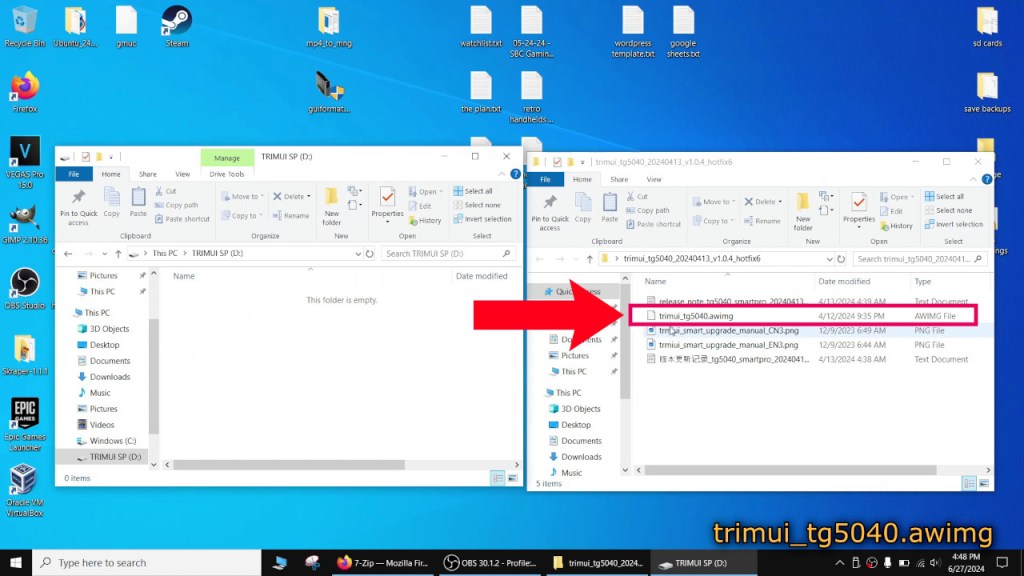
Once extracted, copy the trimui_tg5040.awimg file onto the root of your microSD card.
Copying Base Files Update
The next step is to copy over the latest microSD base package files. You can find the latest files on the trimui assets github: https://github.com/trimui/assets_smartpro/releases.
The latest file as of this recording was tg5040_smartpro_SD_base_package_20240413.7z.
Use 7-Zip to extract the files.
Before copying, if you are using an existing microSD card for your Trimui Smart Pro, back up the RetroArch config files if you made any changes as these may be overwritten. The config files are located in:
SD:\RetroArch\.retroArch\configSD:\RetroArch\.retroArch\autoconfig
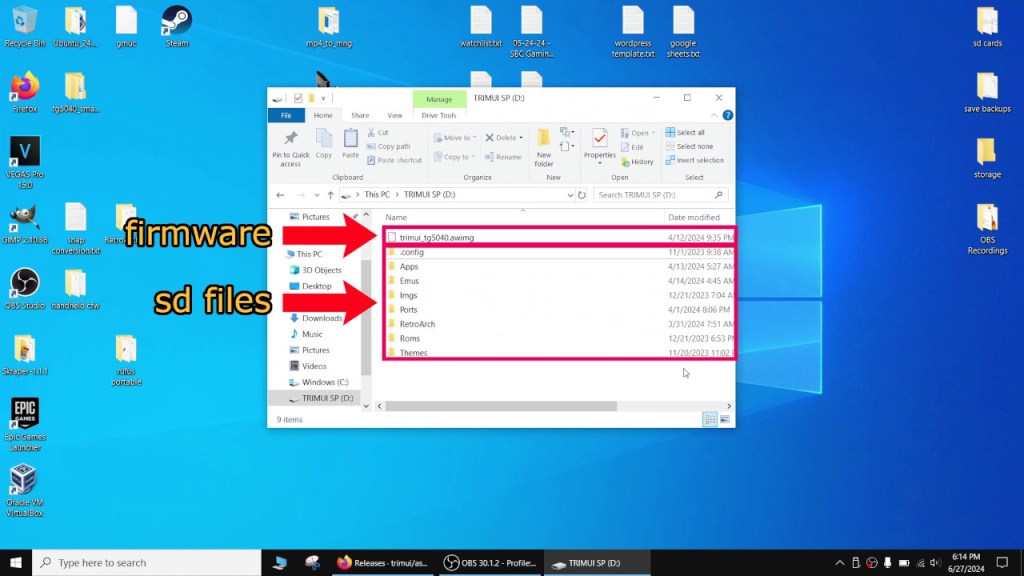
Once extracted, copy all of the files onto the root of your microSD card.
Once all the files are copied, your microSD card should look like this.
Flashing the Firmware
Now safely eject the microSD card and insert it back into the Trimui smart pro. Make sure the handheld has enough battery life for this next step. It should only take a few minutes at most but you don’t want the handheld turning off while it’s flashing the firmware.
While the handheld is off, hold the Vol- button and press the power button. A green bar should show up. You can now release the Vol- button.
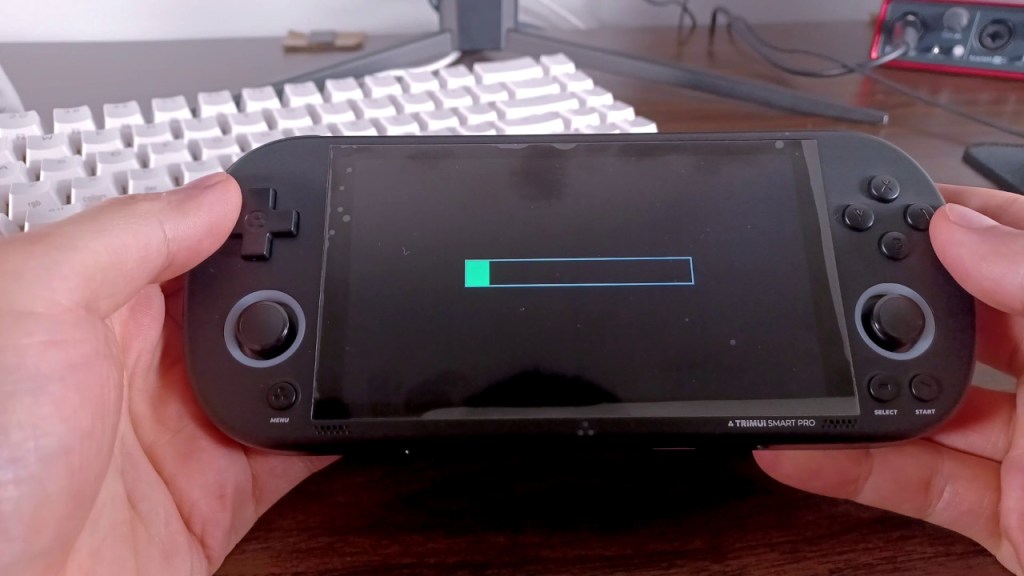
Let the firmware update finish, do not turn off the handheld during this time. It should take roughly 30 seconds to finish.
After it’s done, your handheld’s firmware is now updated!
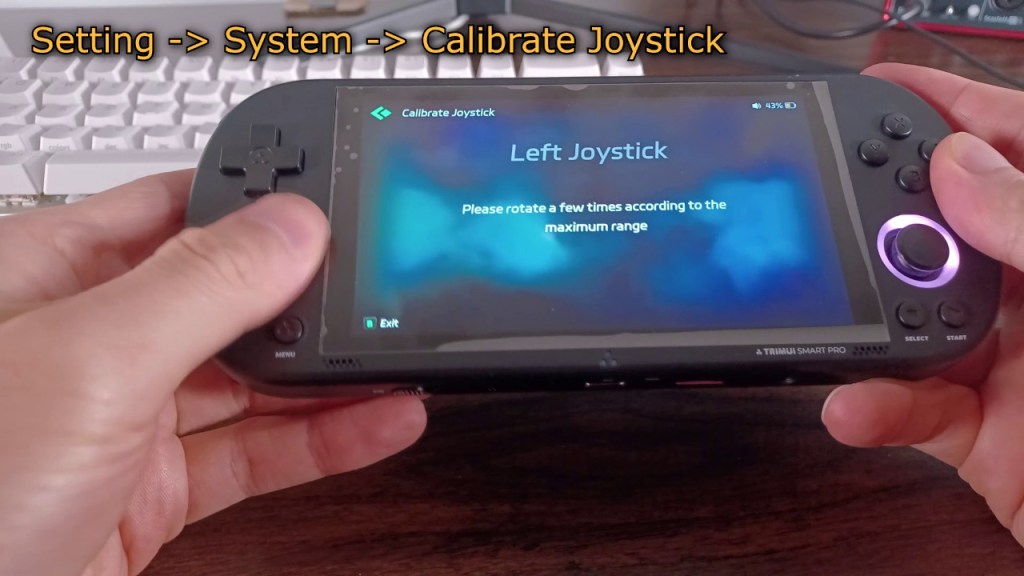
If this was a new microSD card, you can now copy over your ROMs. I would also calibrate the joysticks by going to Setting -> System -> Calibrate Joystick.
PPSSPP
Updating PPSSPP
Now that our handheld and microSD card files are updated, we can update our copy of PPSSPP. Turn off the device by going to Setting -> System -> Power off or by holding the power button for a few seconds. Tapping the power button will put it to sleep.
Remove the microSD card and insert it back into your PC.
Download the latest version of crossmix from the cizia64 CrossMix-OS github: https://github.com/cizia64/CrossMix-OS/releases.
The latest version as of this recording was: CrossMix-OS_v1.1.0.zip.
Extract the contents using a program like 7-Zip or the built in Windows app.
Copy the \Emus\PSP folder from CrossMix into SD:\Emus.
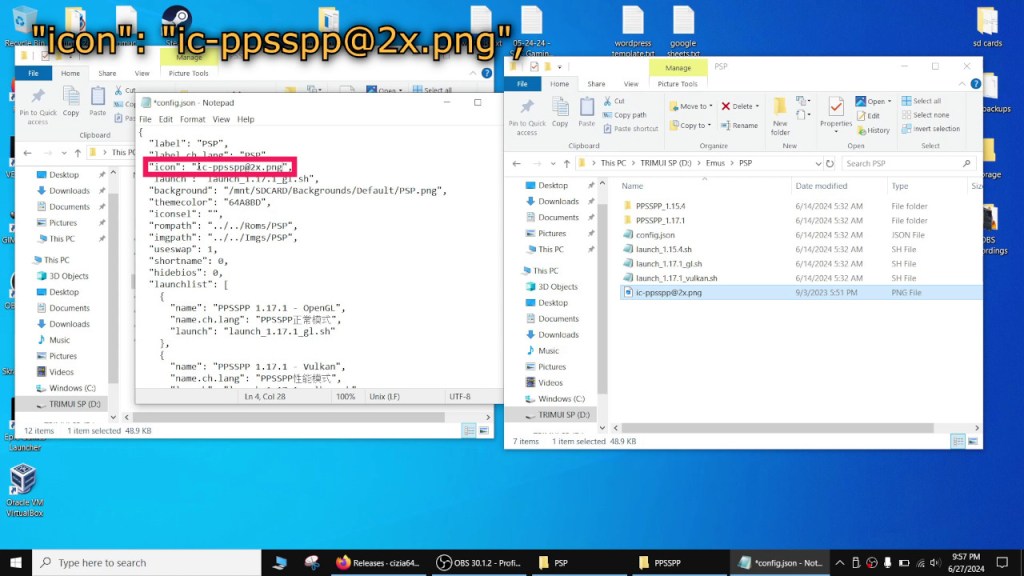
The default emulator icon will be blank. If you don’t like this, you can copy the icon file located at SD:\Emus\PPSSPP\ic-ppsspp@2x.png to our newly created SD:\Emus\PSP folder. Open up the config file in SD:\Emus\PSP\config.json and change the “icon” field to reflect the copied icon image.
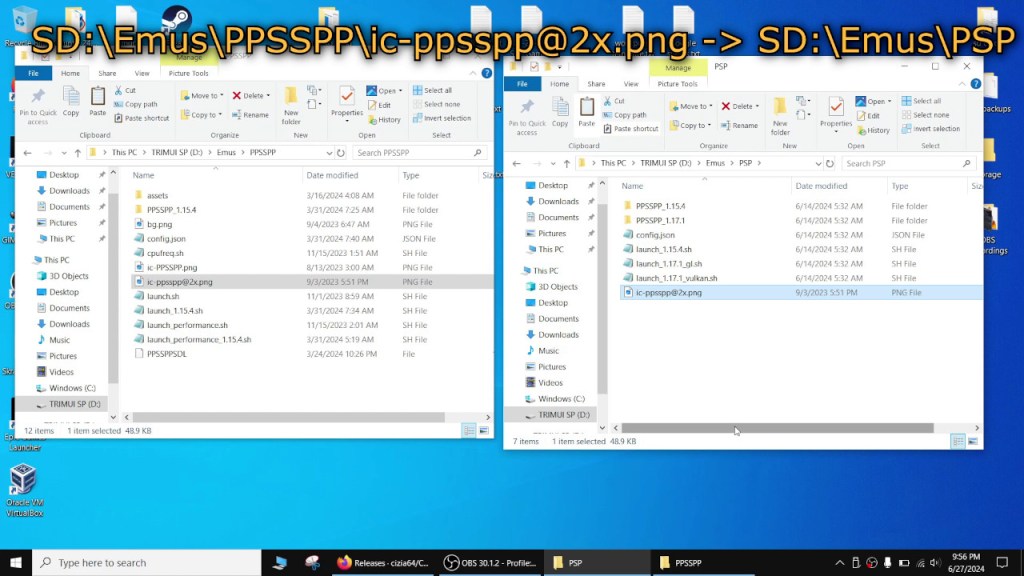
It should look like this after the change.
"icon": "ic-ppsspp@2x.png",
If you want a background image, you can also copy the background image file. I opted to make a new one. The image is a 1280×720 png file and I used gimp to crop the image to that resolution.
Change the background field in the config file to use the background image. I named my bg-ffx.png.
It should look like this after the change.
"background": "bg-ffx.png",
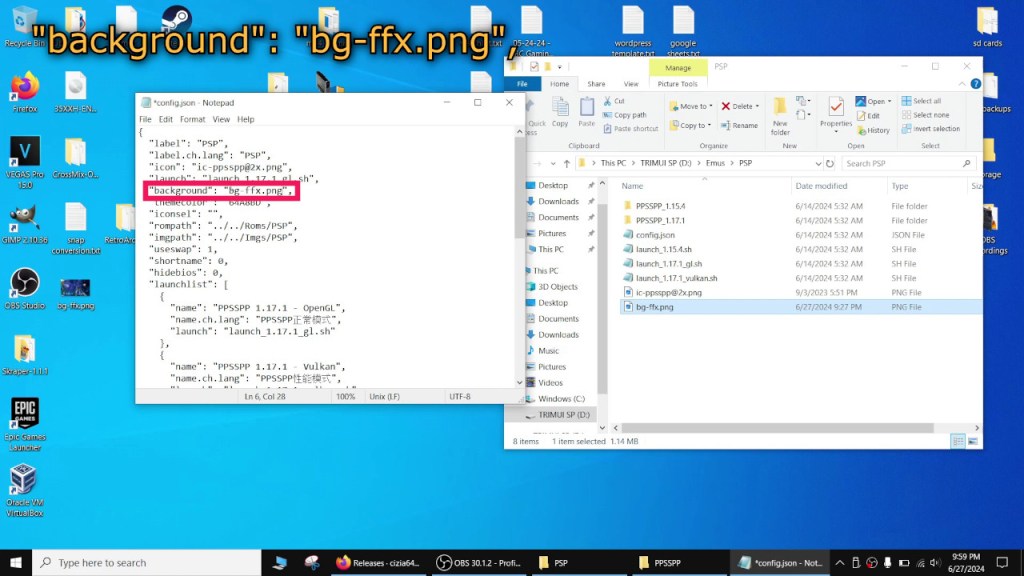
Save the changes to the config file and exit.
Configuring PPSSPP
We now have the updated version of PPSSPP! Insert the microSD card back into the handheld and start it up. Once we’re in, we can navigate to PSP under emulators. We should see the icon image as well as our new background.
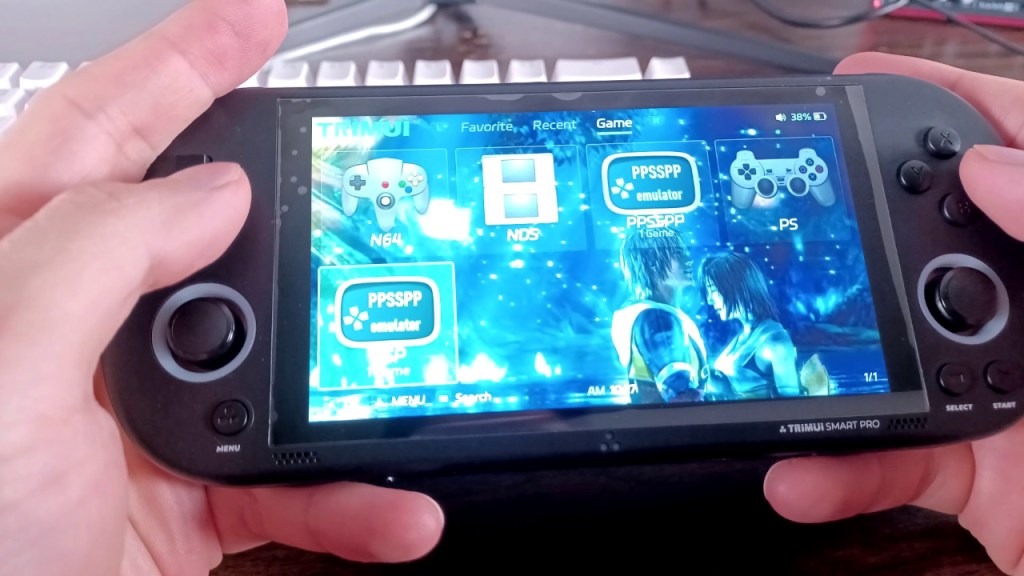
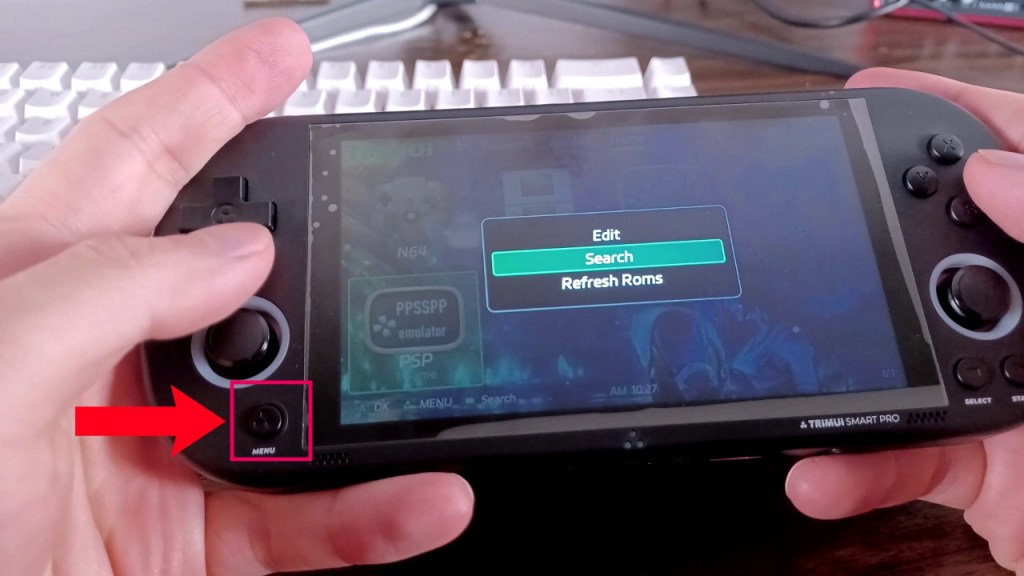
Before we start the emulator, if you added any ROMS make sure to press the Menu button below the left analog stick and select “Refresh Roms”. Otherwise the games may not show up.
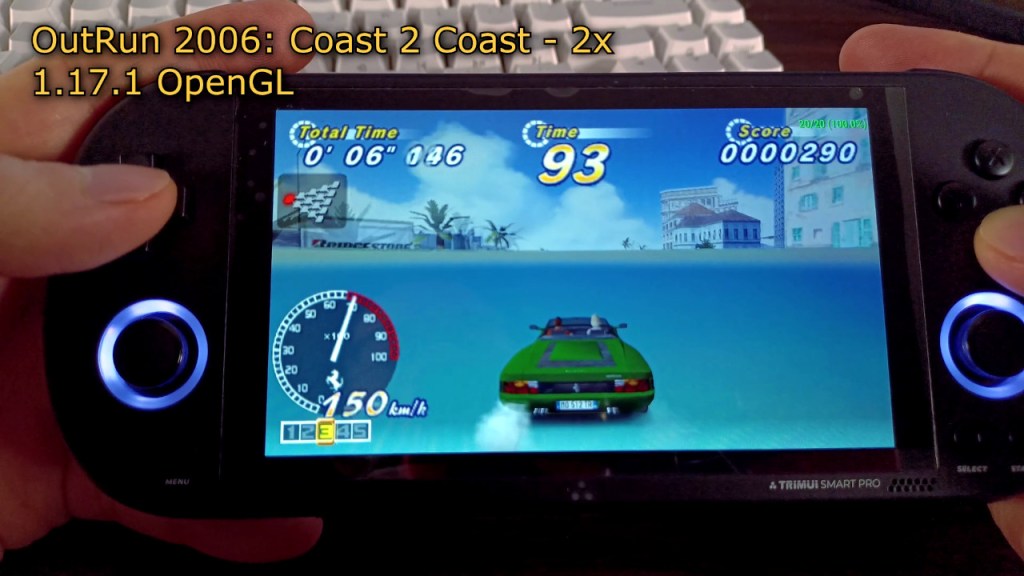
Start a game. You can press X to change the version of PPSSPP if you want to. Press A to start the game with that version or press B to back out of that menu. 1.17.1 OpenGL is the version we want and it should be the default.

Once we’re in the game, press the menu button again to bring up the PPSSPP menu. Go to Settings -> Rendering Mode -> Rendering resolution and make sure this is set to “2x PSP”.
Most games should run pretty well at 2x. If the handheld is having a hard time, you can try lowering this setting to 1x. Most games will have a hard time running at 3x or higher.
Under “Framerate control”, you can set Frame skipping to 1 and enable “Auto frameskip” if games are dropping frames.
Under “Texture scaling”, you can try upscaling the textures. For now I’m playing around with the settings to see if I can make the games look better without effecting performance. I haven’t tried out all the settings but I’m trying out xBRZ at 2x. Turn this off if the game is not performing well.
Under “Texture filtering”, set “Anisotropic filtering” to 16x. You can turn this off if a game is having a hard time running smoothly.
Under “Overlay information”, I enabled “Show FPS counter” to keep better track of game performance when testing out different games. I turn it off when actually playing games.
And that’s pretty much it! Most games I’ve tested ran pretty well compared to the stock OS. Stock OS ran games terribly and most games only ran somewhat well at 1x native resolution. With CrossMix’s build of PPSSPP most games run very well and look visibly sharper with 2 times the native resolution.
Copying Saves
If you had existing saves or save states you want to copy over to the updated stanadlone PPSSPP emulator, you can grab the old save files and save states from these two directories:
SD:.config\ppsspp\PSP\SAVEDATASD:.config\ppsspp\PSP\PPSSPP_STATE
Copy them toSD:\Emus\PSP\PPSSPP_1.17.1.config\ppsspp\PSP\SAVEDATASD:\Emus\PSP\PPSSPP_1.17.1.config\ppsspp\PSP\PPSSPP_STATE
The PSP emulator saves files a bit differently in that you won’t see the game name but instead a folder with a number representing the game. You can peak inside and check out the screenshots if you want to know which save file is which.
I would also recommend backing up any save files or states to your PC that are important to you. Even brand name, reliable microSD cards can still fail or have data corrupted. This won’t happen frequently but it can still happen.
Saving Space
As a side note here, PPSSPP 1.17.1 does support chd files. I didn’t do any extensive testing but chd files seemed to run pretty ok for the most part. Using chd files will save you a lot of space on your microSD card.
For example, the Crisis Core iso file takes up around 1.6GB. The chd version is around 1GB.
For Persona 3 Portable, the iso file takes up around 1.2GB. The chd version is around 780MB.
This is a huge saving in space and will let you copy more games onto your microSD card.
PPSSPP Tweaks for Even Better Performance
You can change these settings for even better performance. Most games won’t need these tweaks so I would just enable them one by one on games that are struggling to run at 100%.
Generally speaking I would just enable all of them and see what problems I run into. If I see graphical artifacting I would turn off “Skip buffer effects” or try out Vulkan mode with “Skip buffer effects” on. If I see graphics or text missing, I would turn off “Lazy texture caching”. If the game still can’t run well, I turn on frame skipping.
I would also try out OpenGL Performance mode or Vulkan Performance mode but be warned, performance mode made my handheld very hot, to the point I did not want to touch my Trimui Smart Pro.
Every game requires a bit of tweaking so I would create a game config for each game before making any tweaks.
Press the Menu button on the lower left hand side of the Trimui Smart Pro while playing a PSP game using PPSSPP to bring up the settings menu. From there, enable the settings listed below.
Under Game Settings -> Graphics -> Speed Hacks
=================================
Skip buffer effects* -> On
Disable Culling -> On
Skip GPU Readbacks -> Skip (or you can try “Copy to texture”)
Lazy texture caching (speedup) -> On
Spline/Bezier curves quality -> Low
Under Game Settings -> Graphics -> Performance
=================================
Buffer graphics commands (faster, input lag) – Up to 2
Hardware transform* – On
Software skinning – On
Hardware tesselation* – On
Under Game Settings -> Graphics -> Texture scaling, Texture filtering
==============================================
Leave it Off
Under Game Settings -> Graphics -> Overlay Information
======================================
Show FPS Counter -> On
Show Speed -> On
This will help you see if you are dropping any frames.
Under Game Settings -> System -> UI
=========================
Transparent UI background -> Off
Under Game Settings -> System -> Emulation
===============================
Force real clock sync (slower, less lag) -> On
Us this setting only if you are using Vulkan with frame skipping turned off and you are getting bad screen tearing.
*”Skip buffer effects” and “Hardware transform” give the best boost in performance. However “Skip buffer effects” may introduce some graphical artifacts like in Outrun 2006. In this case turn it off and enable frame skipping. If this isn’t enough try out OpenGL Performance Mode. If this isn’t enough, try out Vulkan Performance Mode.
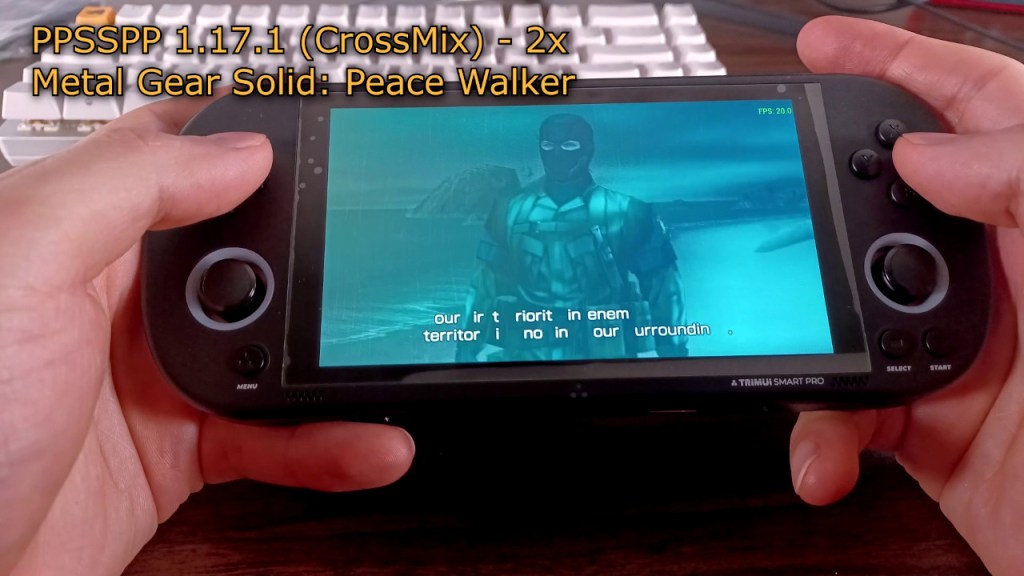
“Lazy texture caching” may cause some graphics to be missing like the text in Metal Gear Solid: Peacewalker. Turn this setting off if you are missing graphics.
Some very picky games may actually run better on the older 1.5 version of PPSSPP. You can try that as a last resort.
GoodBye Friends!
With the vastly improved PSP performance, in my opinion, the Trimui Smart Pro is one of the best handhelds you can get in the $50 range, especially if you wanted to play PSP games.
I did note some things in my limited testing. Metal Gear Peace Walker had a problem displaying fonts correctly. Letters would be missing or wrong letters would be displaying. I thought this was because the official system font was missing but I copied those files and still had the same problem. I tried installing the game as well but that did not help. I don’t know if this is a problem with the chd format but I’ll have to do more testing later.
I also noticed some audio artifacts in Persona 3 Portable for both the chd and iso formats. It sounds like tiny intermittent static crackles when listening through headphones. I don’t know if that’s an issue with the game, the OS, or the hardware.
I also noticed some minor graphical glitches in God of War Chains of Olympus.
Another thing to consider is that the battery life does shorten significantly when playing PSP. I need to do more thorough testing but you can probably expect around 3 hours of playtime or so. The handheld also got slightly warm while playing for an hour straight.
Anyways, those minor issues aside, the majority of my playtime with PSP games was pretty smooth. Being able to run most games at 2x the resolution without any hiccups made for a great experience.
Hope this guide helped. If you have any questions, tips of your own, or need any more help please feel free to leave a comment down below.
As always, hope you guys are staying safe and sane out there, and catch you guys next time.
Changelog
07-09-2024 – Added PPSSPP Tweaks for Even Better Performance and Credits section.
Credits
@killerq7398 – https://www.youtube.com/@killerq7398
u/Mkol103 – https://www.reddit.com/r/EmulationOnAndroid/comments/sopffh/text_loading_error_in_ppsspp/
@Setzer777 – https://www.youtube.com/@Setzer777
Team Pandory – https://www.youtube.com/watch?v=QeMw5YHZ38U

 Ducky Obrien
You have helped me a lot my friend! I am a retro handheld enthusiast, and since I saw the TSP at around 55$, I gave it a try and, oh lord, this is so good!
It hasn’t always been like this, since at the beginning almost none worked on the OS, and the device was around 80$. Nowadays, with Vulkan updates, and performance mode, I would only love to have a much cleaner UI when on the menu.. It is ugly 😦
Thanks a lot! Keep the hard work!
LikeLiked by 1 person
Hey thanks for leaving a comment! It’s true! The TSP has improved quite a bit.
As for the UI, I did see a few themes posted on reddit that looked OK but they aren’t quite there yet. If you’re interested let me know and I’ll try to find them.
Also, the latest version of CrossMix has standalone emulators for Dreamcast and N64 if you wanted to try those out! I’ve heard they’re better but not perfect yet. I believe you can just copy them over like you did for PPSSPP. I haven’t messed around with them yet though so I don’t know the optimal settings.
Glad you’re enjoying your TSP!
LikeLike
Thank you for your article! I have successfully replaced the micro SD to sandisk ultra and updated the firmware.
This is my first retro handheld, and I am very pleased.
LikeLiked by 1 person
Thank you for taking the time to leave a comment! I’m glad you’re enjoying the TSP. Let me know if you have any further questions!
LikeLike
Thanks a ton for this, ducky!
Just to be sure: you’re opting to not use the full crossmixOS as a firmware, but only extract the standalone emulator(s) from it?
If so, is there a reason for that?
LikeLiked by 1 person
Hi Alex! Thanks for taking the time to leave a comment, I appreciate it.
The reason for me only taking what I need is that in my opinion crossmix isn’t stable enough. Crossmix also basically just adds apps and there’s no big fundamental change to the OS so I see no need to install everything if you don’t plan on using all the apps.
It’s been a while since I looked at Crossmix but some things are outdated too compared to stock or getting apps yourself like having the latest build of gpsp with GBA wireless adapter support for the supported Pokemon games. That may have been added by now.
Anyways there’s really no downside if you do plan on doing a full install of crossmix so do whatever is more convenient for you!
LikeLike
Hi again! Oh, my pleasure – thanks for replying so rapidly! Ah, gotcha, that\’s quite the revealing insight, tbh. Until now I simply thought \”mo custom, mo better!\” What I knew so far was that there\’s a difference between a fully custom firmware (knulli, I suppose / iirc) and what\’s basically a frontend to nicen up the use of stock – which brings us back to crossmixOS.
I watched some of the recent YouTube and people have fallen head over heels for crossmix, so as a semi-noob, I naturally went with that. 😇
Thanks a lot for this write-up, though. I\’ll definitely come back to it once I want to try out stock again. 🙂
Take care!
LikeLiked by 1 person
No problem!
I’m probably in the minority but I use stock and try to modify it myself it it’s missing a feature that I want. The only exception to this is Onion OS on the Miyoo Mini/Plus. Onion is probably the most well built custom OS I’ve seen thus far.
LikeLike
Sweet, that’s good to hear! Go a mm+ for my significant other, using the new year break to set it up and only ever heard great things about onion os.
What I do love apart from that is knulli as it seems to be the only cfw that lets you use scraped gameplay videos as a screensaver. But then, that’s a feature for the “mass storage” style players. I guess I should curate my playlist a bit more anyway.
LikeLiked by 1 person
Scraped videos as a screensaver does sound pretty rad!
LikeLike