
Intro
If you guys wanted to trade your Pokemon using WiFi for Game Boy Advance games like Pokemon FireRed, LeafGreen, and Emerald you totally can now. Any device with WiFi running RetroArch 1.17 or higher and the latest gpSP core can do this thanks to David Guillen Fandos who created the GBA wireless adapter feature.
If you want to check out his blog it goes into really deep detail and is an interesting read: https://www.davidgf.net/2024/01/13/gba-wireless-adapter/
Onion OS 4.4 Beta
Onion OS finally has a new beta with an updated build of RetroArch and gpSP! You no longer have to use Koriki if you don’t want to.
You can download the beta version of Onion OS on their homepage here: https://github.com/OnionUI/Onion/releases/tag/latest
The version should be 4.4.0 as of this writing on 02/03/2025.
I was notified by commenter @The052798 on YouTube. Thanks for bringing it to my attention!
Koriki
Installing Koriki
For the Miyoo Mini Plus, we’ll need to install Koriki, another custom operating system. As of this writing Koriki is the only OS with RetroArch 1.18 and the latest gpSP core. However, once Onion OS gets updated to version 4.4, it will also have RetroArch 1.18.
Go download the latest full installation file (as of this writing Koriki_OS_v1.4.2_full.zip) located here : https://github.com/Rparadise-Team/Koriki/releases
If you already are using Koriki on the Miyoo Mini Plus and want to update, download update_koriki_v1.4.2.zip into root of microSD card WITHOUT extracting.
Extract the files using a program like 7-Zip (https://www.7-zip.org/).
Format the microSD card to FAT32 using a program like guiformat (http://ridgecrop.co.uk/guiformat.htm). I like guiformat because it’s simple.
If you don’t trust third party software, run everything in a virtual machine.
I would also recommend using an entirely new microSD card for the Koriki install. I use Onion OS and backing up all my roms, save files, save states, scraped game images/videos, and all my custom apps would be time consuming and inconvenient.
If you don’t have the budget for a new microSD card, I would recommend using a spare stock microSD card as long as you regularly make backups of the save files. If you live in the US, the Onn brand cards at Walmart are cheap and good enough. I bought two 64GB cards for roughly $12. The reliability is lower than the major brands so caveat emptor.
Back up any data on the microSD card that you want to keep, formatting will erase everything!
Make sure to select the correct drive letter on guiformat. You don’t want to format the wrong drive. You can leave all the settings on default.
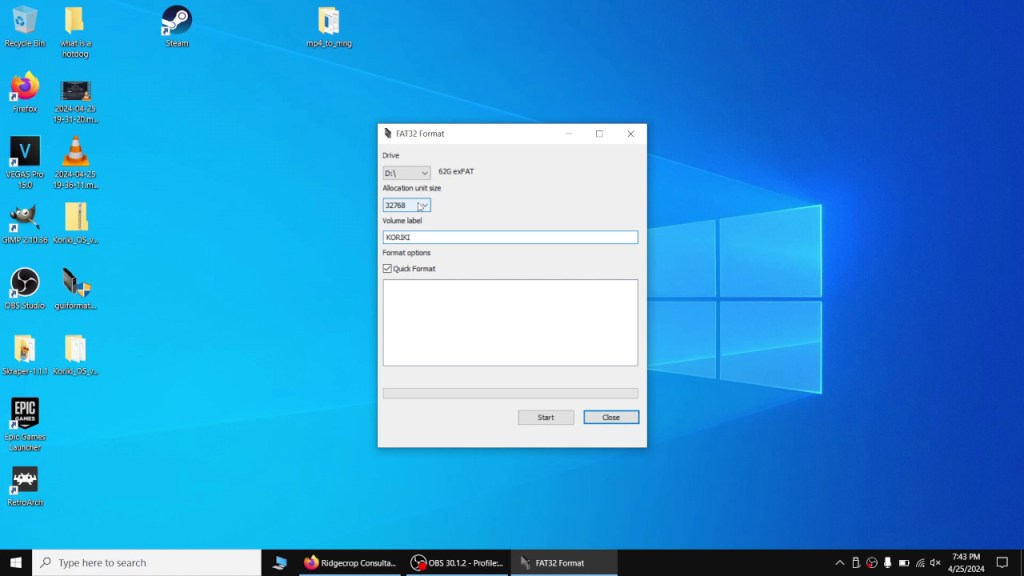
Once the card is done formatting, copy over the extracted Koriki files to the microSD card.
Insert the card back into the Miyoo, turn it on, and let it finish. It will turn off by itself after approximately thirty seconds or so.
Copying Over Roms and Save Files
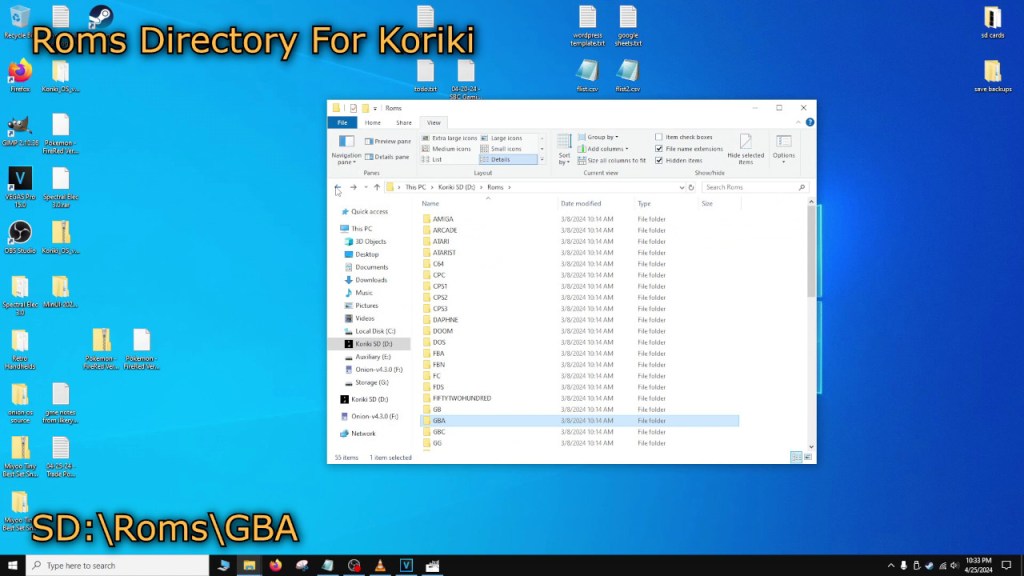
Insert the microSD card back into your PC and copy over your Pokemon Roms and saves. The Roms directory for Koriki is SD:\Roms\GBA. The save directory for Koriki is SD:\Saves\RA_saves\gpSP. If it’s a fresh install of Koriki and you don’t have any GBA saves, you can make the gpSP directory.
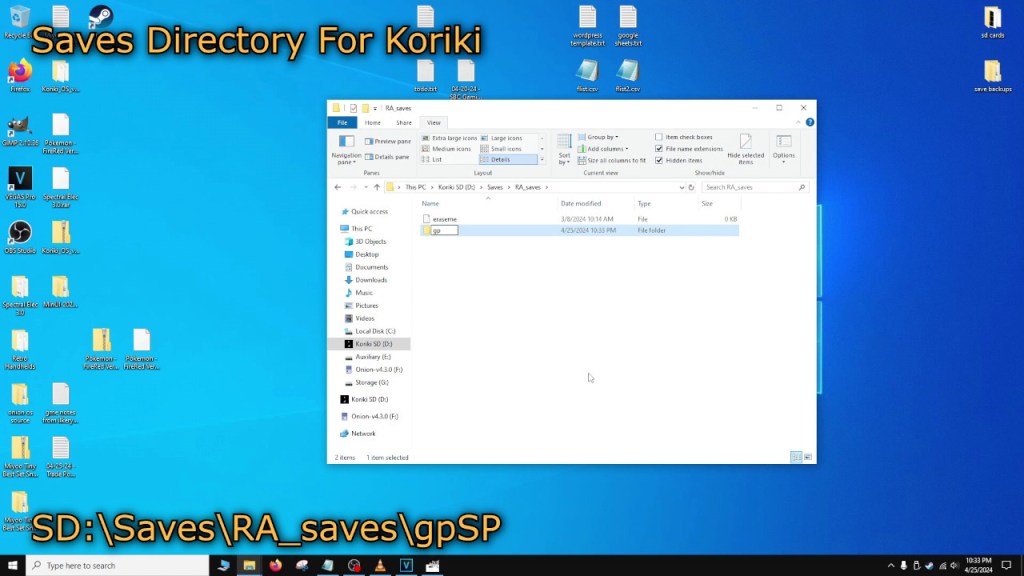
.sav and .srm files are interchangeable. If you have a .sav file you can simply change the extension to .srm for Koriki.
File Extensions
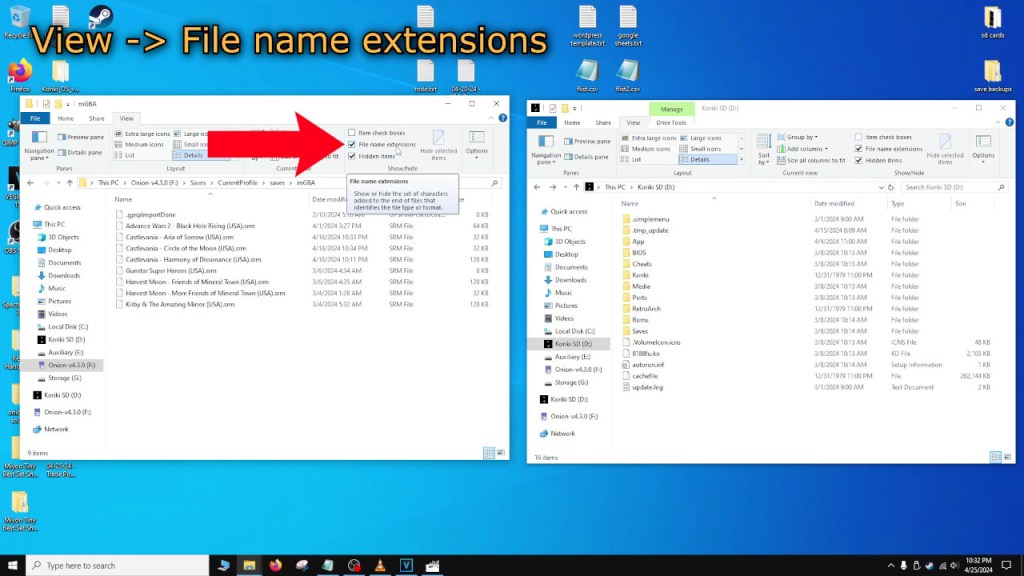
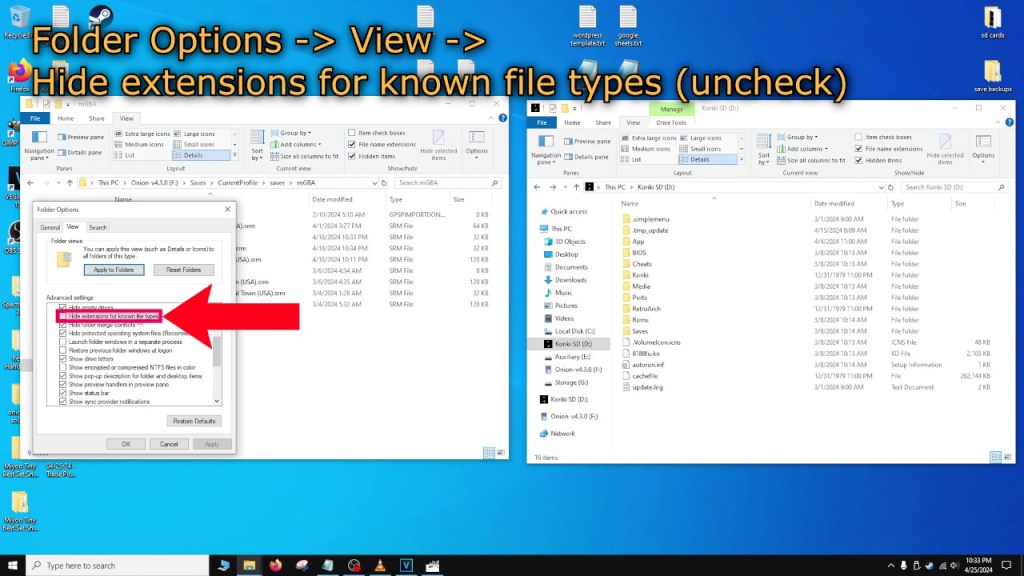
If you can’t see file extensions, you can turn them on by clicking on the View tab and checking the File name extensions box in Windows 10. For other versions, you can access the Folder Options, go to the View tab, and uncheck the Hide extensions for known file types box.
Insert the card back into the Miyoo and turn it on.
Turning on WiFi
Once in Koriki, go to Apps And Games -> Apps -> Wifi (if the icons are big press R1 to swap to list view).
Scan for APs and connect to your home network.
Press B to back out after connecting.
Press Start to bring up the main settings menu.
Turn on Autowifi if you want WiFi always on but it will drain your battery much faster. If you leave this setting off, you will have to go turn WiFi on manually every time you start the device.
Starting Pokemon
Back out to top level of the Koriki interface by pressing B.
Go to Handhelds -> GB Advance and select the game you want to play.
Press Select to bring up game options.
Make sure the emulator is set to gpsp_plus_libretro. It should be by default.
Press B to back out after confirming.
Press A on the game to start the game.
RetroArch
Setting up RetroArch
Press Menu + X to bring up the RetroArch menu while in game.
Go to Core Options -> Link Cable Connectivity and change this setting to GBA Wireless Adapter.

Starting Netplay
Press B to back out to the root of the RetroArch menu.
Go to Netplay -> Host -> Start Netplay Host.
If you want to, you can turn off Publicly Announce Netplay as well as change the server password to something else.
IP Address
If you forgot your Miyoo’s IP address, you can find that information in RetroArch.
Press B to back out to the root of the RetroArch menu.
Go to Information -> Network Information and the Interface (wlan0) entry will contain your handheld’s IP address.
Go to a Pokecenter in the game and wait in the Pokemon Wireless Club Union Room.
Connecting the Second Device
On your second Miyoo Mini Plus, press Menu + X to go to RetroArch menu.
Go to Core Options -> Link Cable Connectivity and set it to GBA Wireless Adapter.
Press B to back out to root of the RetroArch menu.
Go to Netplay -> Connect to Netplay Host.
Type in the IP address of the first handheld and press the Enter key.
The next screen will be a password screen. Type in the password, the default was 4444, and press the Enter key.
Go to Pokecenter and join the Pokemon Wireless Club Union Room and you should be able to connect.
If using PC or this step is crashing the Miyoo, make sure to start Netplay Host or Connect to Host BEFORE loading the game or else it may crash RetroArch.
Some Koriki Hotkeys
- Menu + X = RetroArch Menu
- Menu + B = Fast Forward (You can hold R2 too)
- Menu + L1 = Load Save State
- Menu + R1 = Save Save State
- Menu + L2 = Backward 1 Save Slot
- Menu + R2 = Forward 1 Save Slot
- Menu + Start = Exit Game
- Menu + L2 + R2 + Start + Select = Force Close Retroarch
- Menu + Up/Down or Vol-/Vol+ = Change Brightness
To turn off the Miyoo while using Koriki, you can long hold the power button or press Start to bring up the main menu. From there you can reboot or shutdown.
Thanks for dropping by guys! Hope this guide was helpful. If you need any help please feel free to leave a comment and I’ll try my best to get back to you as soon as possible!
Changelog
02-03-2025 – Updated the article to reflect that this can now be done on the Onion OS beta. Thanks to @The052798 for bringing it to my attention!

 Ducky Obrien
I followed the guide (thank u for your work) but koriki is very unstable. I cannot go forward at step wifi settings, console stucks on enabling wifi network… Ill be waiting for Onion OS 4.4 T-T
LikeLiked by 1 person
Sorry to hear that! Hopefully Onion OS 4.4 comes out soon.
LikeLike
When I try to trade in pokemon fire red/leaf green, always doing connection error. I tried with 2 miyoo plus. any solution ??
LikeLiked by 1 person
Hey Akira, thank you for leaving a comment. I’ll do my best to help! I think my reply before got deleted so I am reposting a response.
This is a hard problem to figure out so it may take a while to troubleshoot.
Before that, I’d like to double check that you are indeed using a recent build of Koriki. Only Koriki will let you trade Pokemon on GBA. Onion OS, stock, or minUI will not work as far as I know.
If you do have Koriki, you can double check your Miyoo settings.
If the above are set and fine, then it may be your router that is the problem. I know this may be annoying but could you try playing a netplay game for a different system (not GBA). If your Miyoos connect fine, then your router is fine and it could be your emulator or ROM. Make sure you are using the correct version of gpSP to launch the game. If you are, try downloading the game from a different website. The game could be corrupted.
If the router is the issue and you cannot connect via netplay, try setting the router to use 2.4 GHz as the frequency and try setting security to WPA2 if you are using WPA3.
Sorry for the brief writeup. If anything doesn’t make sense or you need more help, please feel free to ask! This problem is very hard to solve so it will take some time.
LikeLike