
You can use your Miyoo Mini Plus as a controller via Adil Rahman’s WiPadRetro app. It streams simulated keyboard inputs from your Miyoo Mini Plus over WiFi to a PC running the WiPadRetro Link App. Since you need WiFi for this, the original Miyoo Mini will not work, only the Miyoo Mini Plus.
If you don’t feel safe installing 3rd party software, run everything in a virtual machine.
Installing Python
Latest Python build: https://www.python.org/downloads/
You need Python running on the computer that will be using the Miyoo Mini Plus as the controller. The WiPadRetro app is built on Python.
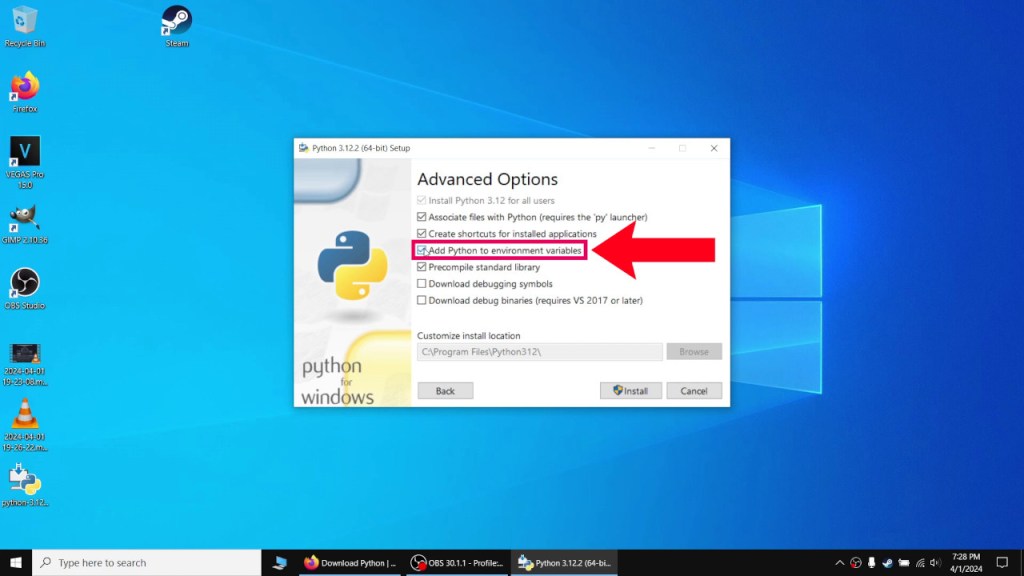
When installing Python, used the custom settings and make sure “Add Python to environment variables” is checked in the Advanced Options section during install. “pip” should also be installed in the Optional Features section but this should be enabled by default.
Installing Onion OS
Onion OS official github: https://onionui.github.io/
Onion Desktop Tools official github: https://github.com/schmurtzm/Onion-Desktop-Tools
You also need to install Onion OS onto your Miyoo Mini Plus. This is very simple to do, simply download and extract the contents of Onion OS onto your microSD card (once it’s formatted to FAT32 using a tool like rufus or guiformat). Formatting erases everything so backup anything you want to keep if you are planning on formatting an used microSD card.
If setting up Onion OS looks intimidating, you can use Schmurtzm’s Onion Desktop Tools which takes care of everything for you.
Installing WiPadRetro
WiPadRetro github: https://github.com/adildsw/WiPadRetro/releases/tag/v0.1-beta
Download and extract wipadretro_miyoominiplus.zip and copy it over to your microSD card with the Onion OS install, into the App folder. The directory should be SD/App.
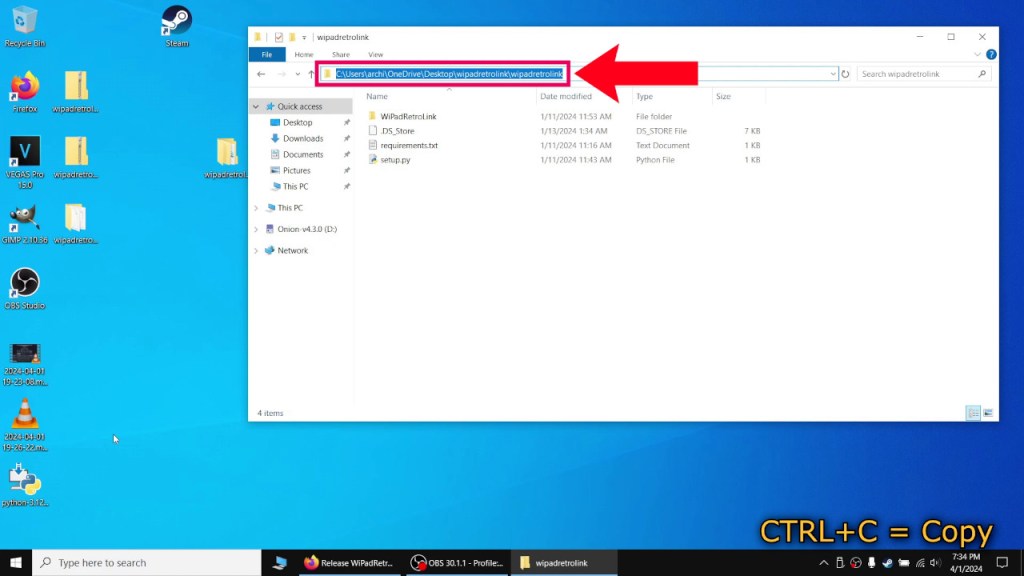
Download and extract the wipadretrolink.zip file onto your PC. Navigate inside the folder until you see the setup.py file and copy the address of the folder by clicking on the address bar and highlighting it. CTRL+C will copy the address.
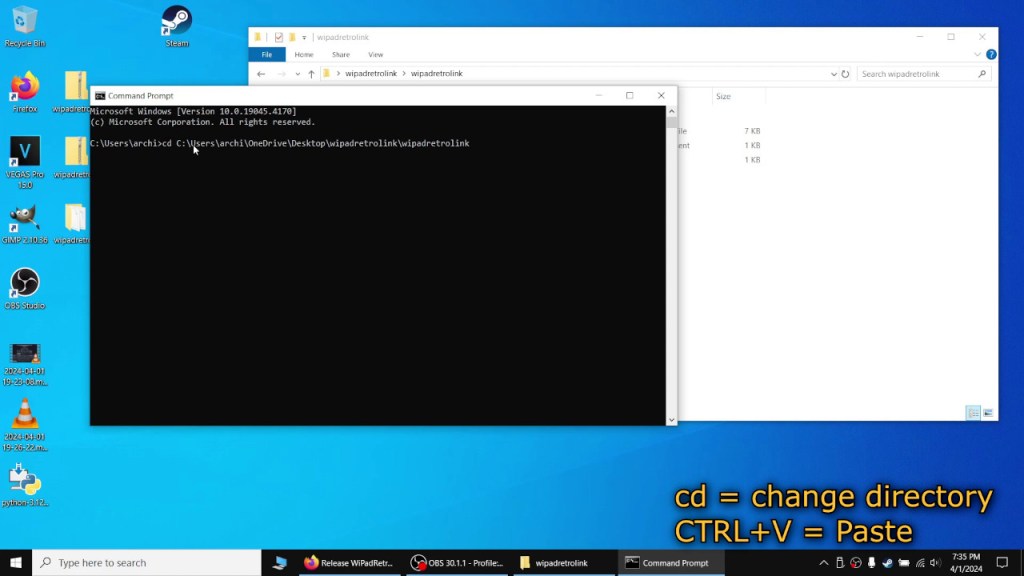
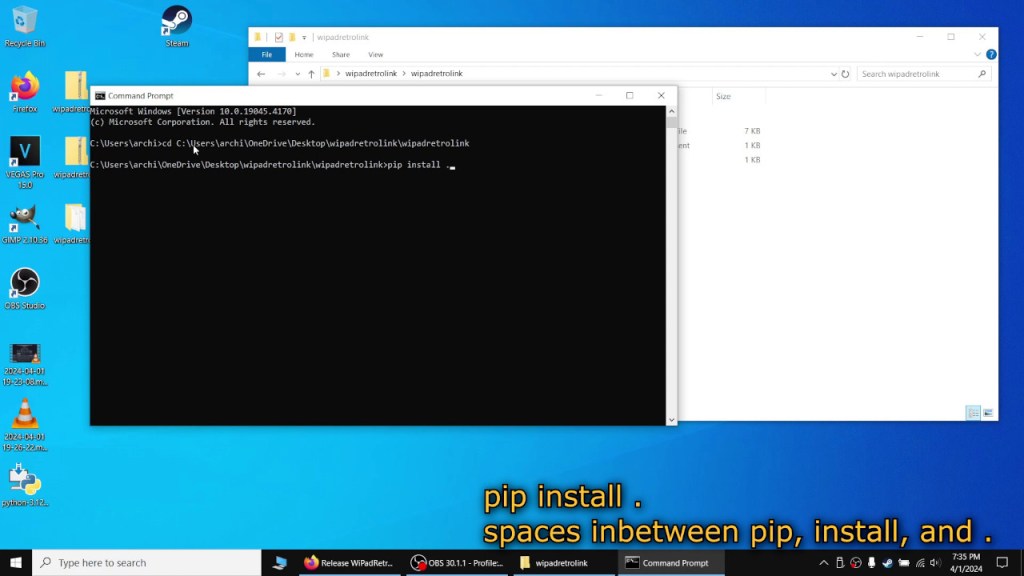
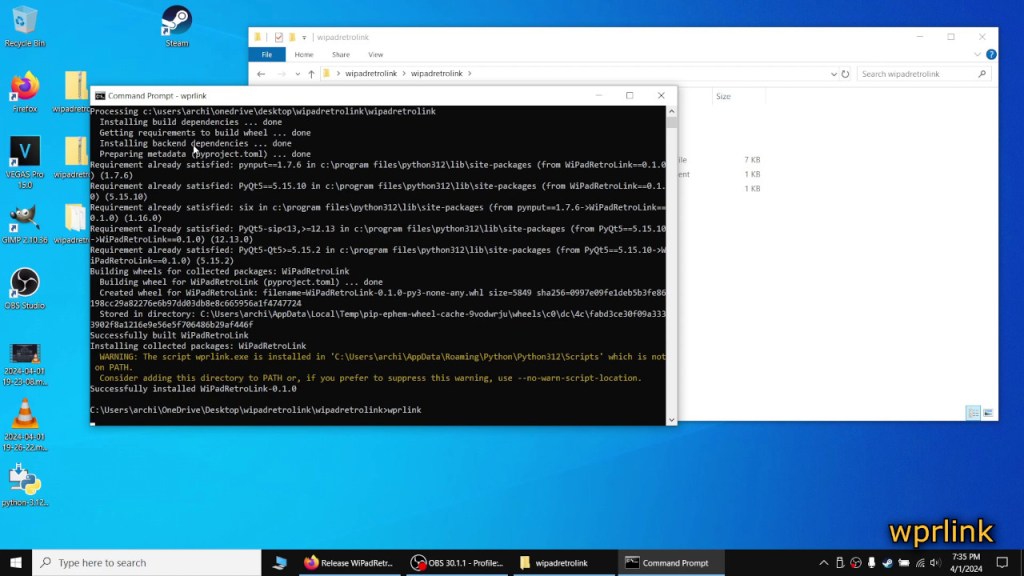
Start the command prompt by typing in cmd into the Windows search bar. Type in cd and a space and then paste in the address and hit enter. CTRL+V will paste the address. CD is used to change directories and this will change the location to the setup file. Type in pip install . and hit enter to install the file. After it is finished, type in wprlink to start WiPadRetro.
Using WiPadRetro
Once the app starts, all you need to do is type in the IP address of your Miyoo Mini Plus. To find the IP address, make sure that WiFi is turned on for your handheld. If it is, it will display the IP address next to the WiFi option. If it’s not there for some reason, go to Apps -> Tweaks -> Network and the IP address should be shown at the top.
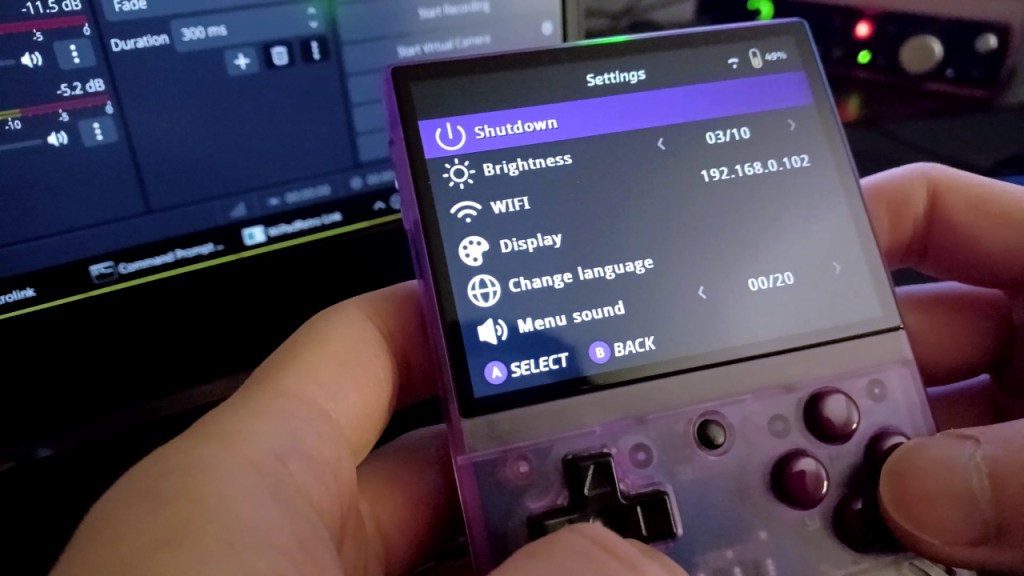
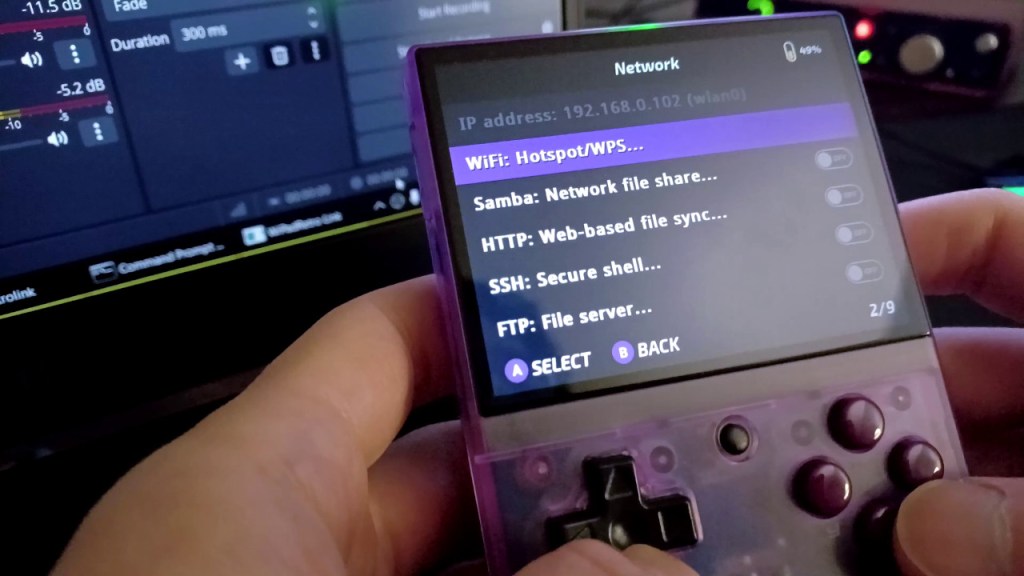
Once you connect, you can now use the Miyoo Mini Plus as a controller. I would recommend disconnecting the app and then rebinding the keys in WiPadRetro to match the game’s layout. This way, your default control scheme in the game is not effected.
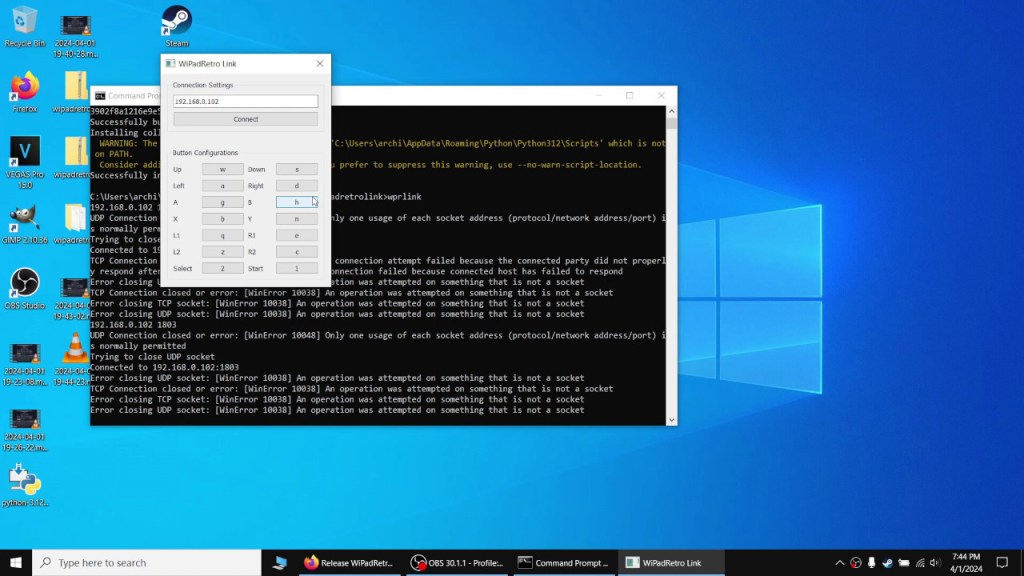
If you see a UDP socket error, the MMP probably needs to be brought closer to the router.
Conclusion
While this works fine, it’s worse than using an actual controller. The ergonomics on even the most generic controller will far exceed the Miyoo Mini Plus. While it’s not ideal, it’s definitely usable for simple games that don’t require an analog stick. It’s also highly practical in that you don’t have to buy another device that may end up as junk and making use of what you have.

 Ducky Obrien